







In a world where every second counts, typing out the same phrases over and over can feel like a cruel form of modern torture. Luckily, iPhone users can escape this repetitive fate by setting up auto text. Imagine effortlessly firing off “On my way!” or “Let’s grab coffee!” without lifting a finger. Sounds dreamy, right?
Understanding Auto Text on iPhone
Auto text on iPhone serves as a time-saving tool. This feature allows users to create shortcuts for frequently used phrases, enabling rapid communication.
What Is Auto Text?
Auto text refers to the feature that enables users to type a short phrase and have it automatically replaced with a longer message. For example, typing “brb” can change to “be right back.” Users customize these shortcuts according to their needs. Setting up auto text simplifies communication by reducing repetitive typing, making it an essential tool for busy individuals.
Benefits of Using Auto Text
Using auto text enhances efficiency in messaging. Quick access to common phrases saves time during conversations. This feature also reduces the likelihood of typing errors, ensuring accurate messaging. Additionally, users can streamline routine responses, such as greetings or sign-offs. Convenience emerges when sending texts in multiple contexts, allowing for smoother interactions. Overall, these benefits contribute to a more effective texting experience on the iPhone.
Steps to Set Up Auto Text on iPhone
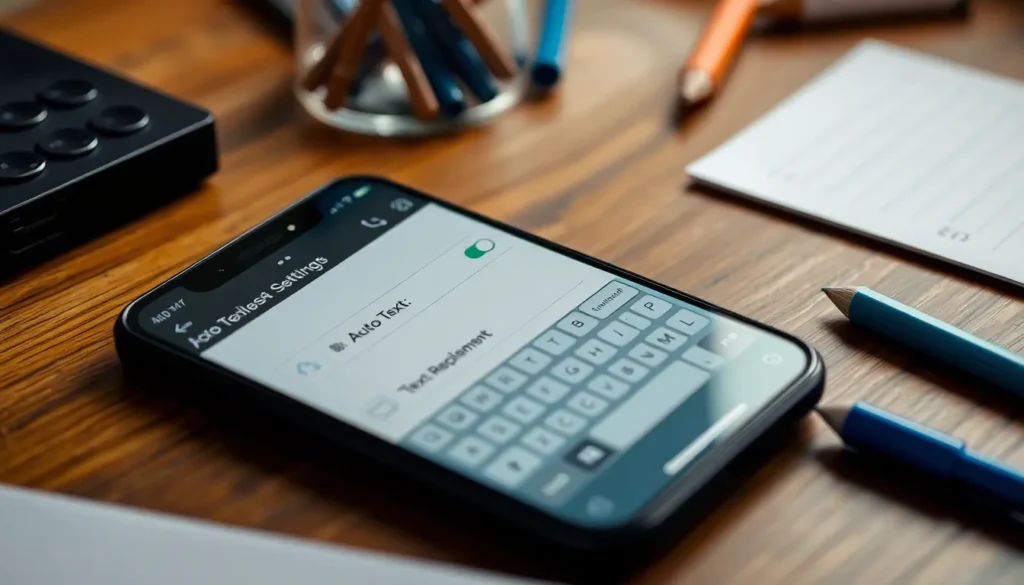
Setting up auto text on an iPhone enhances communication by enabling quick phrase replacements. This process involves accessing keyboard settings and creating custom shortcuts.
Accessing Keyboard Settings
Open the Settings app from the home screen. Tap on General, then select Keyboard. Here, you find various keyboard options. Enable features such as Auto-Correction and Smart Punctuation for an improved typing experience. Scroll down to find the Text Replacement option. This setting allows for managing all auto text shortcuts in one place. Familiarize yourself with the menu, as it will be your primary control center.
Creating Custom Auto Text Shortcuts
Within Text Replacement, tap the plus sign to add a new shortcut. In the Phrase field, input the full text you want to appear. Enter a memorable shortcut in the Shortcut field. For example, typing “omw” can replace it with “On my way!” Save your entry. Repeat this process for any other phrases you commonly use. Explore a variety of phrases, from personal messages to useful responses for work situations. These shortcuts significantly improve efficiency in texting.
Managing Your Auto Text Shortcuts
Managing auto text shortcuts enhances texting efficiency. Users can edit or delete shortcuts as needed to ensure accuracy and relevance.
Editing Existing Shortcuts
To edit an existing shortcut, users navigate back to the Text Replacement section in Settings. They select the shortcut they want to modify. Upon making the desired changes, users save their updates by tapping Save. For instance, they might change “omw” to “On my way!” or correct spelling errors. Frequent edits allow users to keep shortcuts aligned with evolving communication needs. Remember, an updated shortcut contributes to a smoother texting experience, reflecting current language use and personal style.
Deleting Unused Shortcuts
Deleting unused shortcuts is straightforward and necessary for maintaining an organized list. Users can find the shortcut they no longer require in the Text Replacement section. Upon selecting it, they tap Delete. It’s essential to periodically review shortcuts to eliminate redundancy. For example, if a phrase becomes outdated, removing it helps prevent confusion. This practice optimizes the shortcut library, ensuring only relevant phrases are retained, streamlining typing efficiency on an iPhone.
Common Issues with Auto Text
Auto text features may encounter occasional issues that disrupt their functionality. Identifying and resolving these problems enhances the overall user experience.
Troubleshooting Auto Text Problems
Missing or incorrect shortcuts often cause frustration. Check that the shortcut is properly entered in the Text Replacement settings. Restarting the iPhone can also help reset minor glitches. Users may find that disabling and re-enabling Auto-Correction restores auto text functionality. Sometimes, system updates impact performance; ensuring the latest iOS version is installed resolves most compatibility issues. Testing the keyboard in various applications ensures shortcuts work uniformly across messaging platforms.
Tips for Better Auto Text Usage
Select clear and memorable shortcuts for effective communication. Users benefit from avoiding overly complex phrases, simplifying their typing experience. Regularly updating shortcuts to reflect changing communication styles keeps interactions fresh. Sharing commonly used phrases among family or coworkers can enhance group messaging efficiency. Utilizing emojis as shortcuts adds a fun element to conversations. Reviewing shortcuts every few weeks prevents clutter, ensuring only relevant phrases remain active.
Setting up auto text on an iPhone transforms the way users communicate by streamlining their messaging experience. By creating shortcuts for frequently used phrases, they can save time and enhance efficiency. Regularly managing and updating these shortcuts ensures they remain relevant and useful. With the ability to troubleshoot common issues, users can maintain a seamless texting experience. Embracing this feature not only reduces typing errors but also makes communication more enjoyable. Adopting auto text can significantly improve daily interactions, making it a valuable tool for anyone looking to simplify their messaging.